Why pinned apps break on KDE Plasma and GNOME, and the two steps that diagnose it
How to fix broken app launchers and pinned apps on Linux
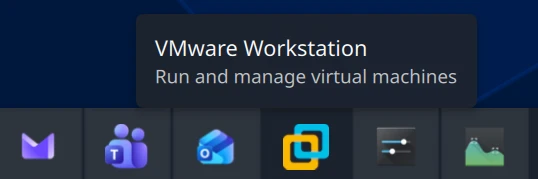
After tracking down why Microsoft Edge PWAs collapse into one taskbar icon on Plasma Wayland, I started noticing the same problem in other applications — just with different presentations. VMware Workstation, for example: pin it to the Icons-Only Task Manager, close it, and the pin loses its icon.
These all share one root cause, it’s almost never your desktop’s fault — the same bugs bite GNOME — and you can diagnose any instance of it in about two minutes in two steps. This post is the generalized version of the Edge investigation.
How your desktop decides what a window is
When a window appears, your desktop’s taskbar or dock — Plasma’s task manager, GNOME Shell’s dash — has to answer: which application is this? The answer determines the icon, the grouping, and whether a pinned launcher lights up as “running.”
Every window advertises an identity string — technically WM_CLASS for X11 applications or app_id for Wayland ones, but for our purposes it’s just the window’s class. The desktop compares that class against the filename of the installed .desktop files — similar to .lnk files in Windows — with the StartupWMClass= key in the .desktop file as a secondary hint for applications whose window class legitimately differs from their desktop entry name. The freedesktop convention is that these should simply be equal. Plasma and GNOME Shell each have their own matching heuristics on top, but they consume the same identifiers, which is why the same vendor bugs break both — the Edge regression below was reported on GNOME before I hit it on Plasma.
When the match succeeds, everything works: windows group under their own icon, pins show running state, closed pins keep their icon and relaunch the right thing. When it fails, the symptoms below are what it looks like on Plasma; GNOME shows the same failures with different cosmetics (windows piling under one dash icon, favorites that never light up, ghost icons alongside the pinned one):
- Orphaned windows collapse together. Unmatched windows apparently fall back to being identified by their process executable, so multiple unmatched windows from the same binary merge into one generic group. (I haven’t verified this fallback against the libtaskmanager source, but it matches the observed behavior exactly.)
- Pins built from unmatched windows are hollow. While the window is open, the taskbar can display the icon the window itself provides. Pin it and close it, and the pin must render from a matched desktop entry — which doesn’t exist, so you get a blank page icon and a launcher that starts the bare executable instead of the app you pinned.
- Launcher placeholders are never adopted. Launching from the application menu shows the entry’s startup placeholder in the taskbar, which then vanishes and is replaced by a separate, unassociated entry — because no window ever showed up claiming the identity the placeholder was waiting for.
The two-step diagnosis
Step one: find out what the window calls itself.
On KDE, open System Settings → Window Management → Window Rules → Add New → Detect Window Properties, then click the misbehaving window. The window class shown is the identity you need. This works for every window, regardless of what toolkit or display protocol the app uses.
On GNOME, use the Looking Glass debugger: press Alt+F2, type lg, press Enter, switch to the Windows tab, and read the class column for your app.
If you prefer a terminal, xprop WM_CLASS turns your cursor into a crosshair — click the window and it prints two strings, instance first, class second. The caveat: xprop only sees X11 applications (including those running under XWayland). If clicking a window returns nothing, the app is native Wayland — use the KDE or GNOME method above instead.
Step two: find out what the vendor installed.
1
2
3
grep -H -e '^StartupWMClass' -e '^Name=' \
  /usr/share/applications/<app>*.desktop \
  ~/.local/share/applications/<app>*.desktop
Here <app> is a fragment of the desktop file’s name, used as a shell glob — vmware matches both vmware-workstation.desktop and vmware-netcfg.desktop, and msedge matches every Edge PWA entry. Desktop filenames don’t always resemble the app’s display name, though (Flatpaks use reverse-DNS names like com.google.Chrome.desktop, and Flatpak entries live under /var/lib/flatpak/exports/share/applications/ rather than the paths above). If your guess matches nothing, search by the human-readable name instead and note the filenames it turns up in:
1
2
grep -ril 'workstation' /usr/share/applications/ \
  ~/.local/share/applications/
Now compare. If the window identity matches a desktop file basename or a StartupWMClass value in that file’s [Desktop Entry] section, matching should work and your problem is something else. If nothing matches — you’ve found it.
One bug, three vendor flavors
Every broken case I’ve examined is the same mismatch for a different reason:
- Wrong value — Microsoft Edge. Edge writes
StartupWMClass=crx__<appid>(a legacy X11 class) into desktop files while its native-Wayland windows advertiseapp_idmsedge-_<appid>-Default. Neither matches the other, nor the filename. Full analysis and fix in the Edge post - Missing key — VMware Workstation. The window’s
WM_CLASSis"vmware", "Vmware", the desktop file isvmware-workstation.desktop, and noStartupWMClassexists to bridge them. Worked example below. - Right value, wrong section — Chrome (Flatpak). A Flathub bug found
StartupWMClass=google-chromepresent in the desktop file — but placed under a[Desktop Action new-incognito-window]block instead of the main[Desktop Entry]section, so it only took effect when launching incognito. Section placement matters.
In all three cases the vendor ships both sides of the mismatch — the application setting the window identity and the desktop file that fails to declare it. Your desktop is following the rules.
Worked example: fixing VMware Workstation
Diagnosis on my Kubuntu system:
1
2
3
4
5
6
$ xprop WM_CLASS
WM_CLASS(STRING) = "vmware", "Vmware"

$ grep -H -e '^StartupWMClass' -e '^Name=' /usr/share/applications/vmware*.desktop
/usr/share/applications/vmware-netcfg.desktop:Name=Virtual Network Editor
/usr/share/applications/vmware-workstation.desktop:Name=VMware Workstation
No StartupWMClass lines at all, and vmware ≠ vmware-workstation. Confirmed.
Don’t edit the file in /usr/share/applications/ — package upgrades will clobber it. Copy it to your user directory, where it shadows the system file, and add the hint there:
1
2
3
cp /usr/share/applications/vmware-workstation.desktop ~/.local/share/applications/
sed -i '/^\[Desktop Entry\]/a StartupWMClass=Vmware' \
  ~/.local/share/applications/vmware-workstation.desktop
Then remove the broken pin (it was built from unmatched window metadata and won’t heal itself), launch VMware from the application menu, and re-pin the running entry. The pin now keeps its icon when closed and relaunches correctly.
The control case that proves the problem isn’t your desktop
Here’s the interesting part. VMware ships a second desktop file in the same package: vmware-netcfg.desktop, for the Virtual Network Editor. Its window’s WM_CLASS?
1
2
$ xprop WM_CLASS
WM_CLASS(STRING) = "vmware-netcfg", "Vmware-netcfg"
The instance string exactly matches the desktop file basename — this one follows the freedesktop convention. And sure enough, the Network Editor pins, closes, and relaunches flawlessly with no fix applied.
Same vendor, same package, two desktop files: the one that follows the convention behaves perfectly, the one that doesn’t loses its pin. It’s hard to imagine a cleaner demonstration that these are packaging bugs, not Plasma or GNOME bugs.
The general fix recipe
- Diagnose with the two steps above.
- If the app’s desktop file lives in
/usr/share/applications/, copy it to~/.local/share/applications/and edit the copy. - Add
StartupWMClass=<the window's class from step one>to the[Desktop Entry]section — not a[Desktop Action]block. Ifxpropgave you two strings, use the second one. - Remove any pins created while the app was broken, relaunch, and re-pin (on GNOME: remove and re-add the favorite in the dash).
And if you’ve got a few minutes, report it to the vendor. In every case the fix on their side is trivial — a corrected value, a single added line, or a moved line — and unlike your local override, it fixes it for everyone.